How to Build OpenClaw on Telegram: From BotFather to a Mobile AI Assistant
A practical OpenClaw guide built around the real Telegram setup flow: install the gateway, connect a Telegram bot, approve pairing, and turn it into a mobile AI entry point.
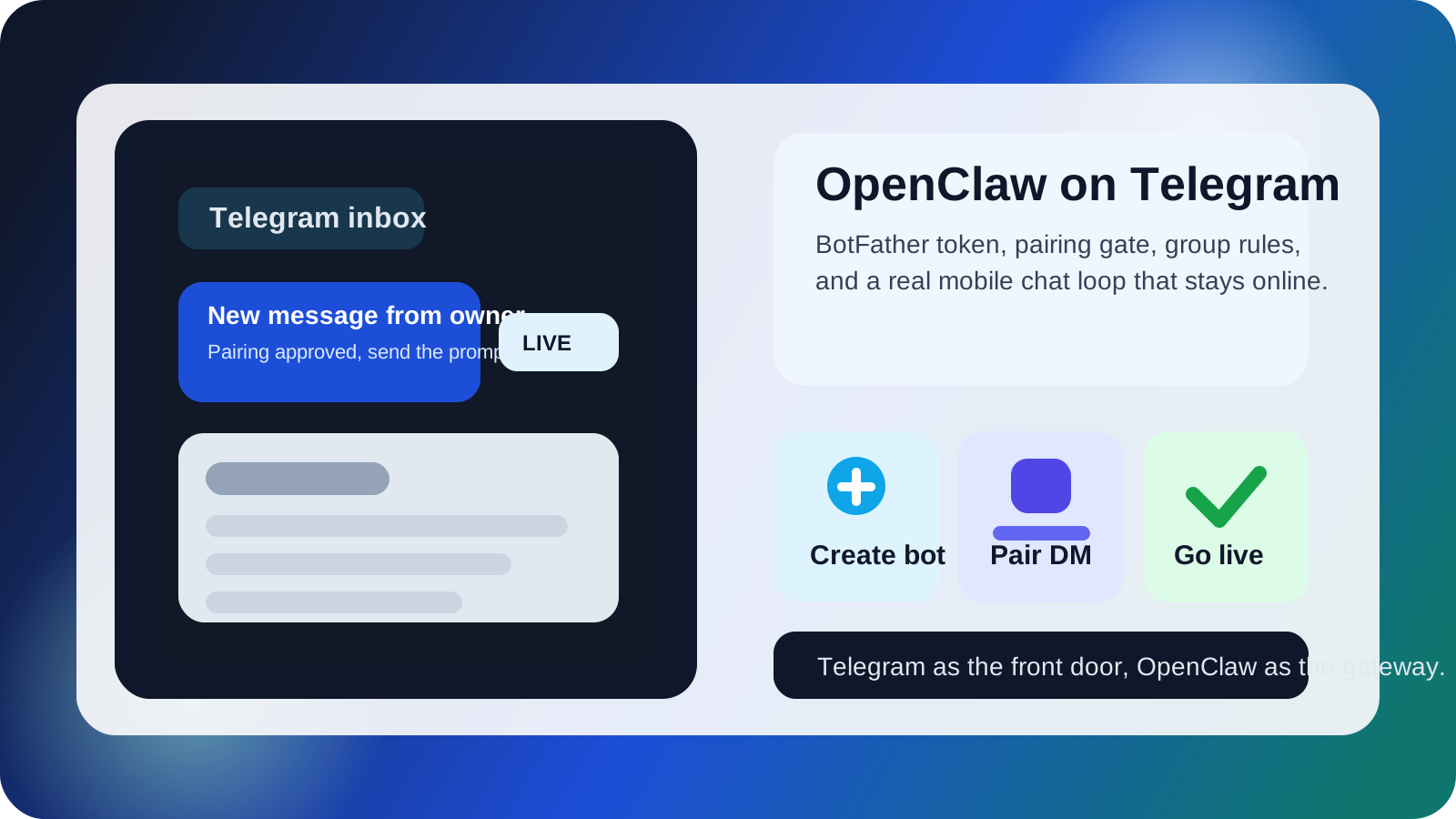
Start with the right assumption: Telegram is the fastest first interface for OpenClaw
If this is your first OpenClaw deployment, do not start with the most complex multi-surface setup. Telegram is the cleaner first channel because one bot token is enough to get a real AI agent running on your phone.
OpenClaw's own docs position Telegram as one of the fastest mobile chat entry points. For most operators, the right sequence is simple: get the message path working first, then expand into nodes, voice, or more advanced workflows later.
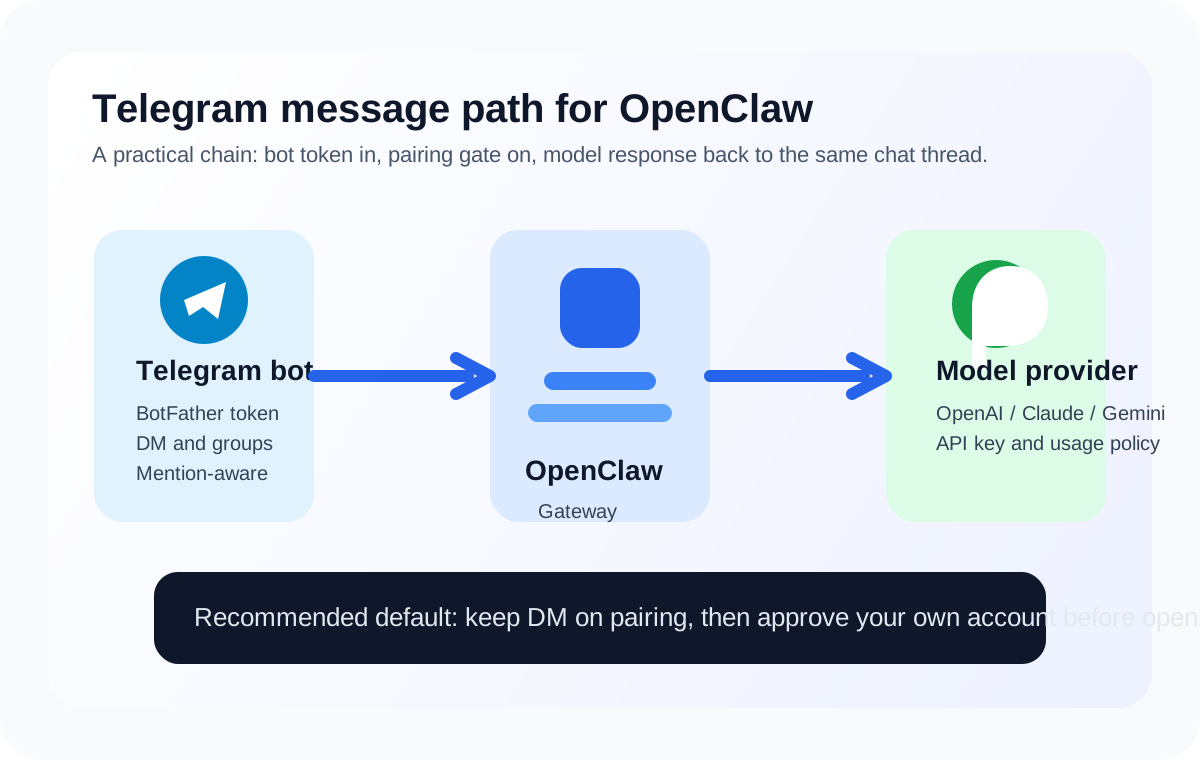
What you need before you start
- A machine that can stay online long enough to act as your gateway. macOS, Linux, and Windows all work.
- Node.js 24, or at least 22.14+
- An API key from a model provider such as OpenAI, Anthropic, or Google
- A Telegram account so you can create a bot with @BotFather
If you only want to prove the setup locally, a laptop is enough. If you expect to message the assistant from your phone every day, move it onto a VPS or another always-on machine. Once the gateway goes down, the Telegram entry point is gone too.
Step 1: Install OpenClaw and run onboarding
The fastest OpenClaw path is either the official install script or a global npm install. After that, run onboarding so the gateway, model auth, and daemon setup happen in one pass.
curl -fsSL https://openclaw.ai/install.sh | bash
openclaw onboard --install-daemon
If you already manage your own Node environment, this works too:
npm install -g openclaw@latest
openclaw onboard --install-daemon
Do not wire Telegram in yet. First confirm the gateway is actually up:
openclaw --version
openclaw gateway status
openclaw dashboard
If the dashboard opens, the foundation is healthy. At that point you already have a working OpenClaw Gateway. Telegram is just not attached yet.
Step 2: Create your Telegram bot in BotFather
This part is easy, but many broken setups start here because the bot token is handled too casually.
The flow is:
- Search for @BotFather in Telegram and confirm it is the official account
- Run /newbot
- Set the bot name and username
- Save the bot token that BotFather returns
That token is what OpenClaw will use next. Do not paste it into a group, do not leave it inside screenshots, and do not bury it inside unlabelled notes.
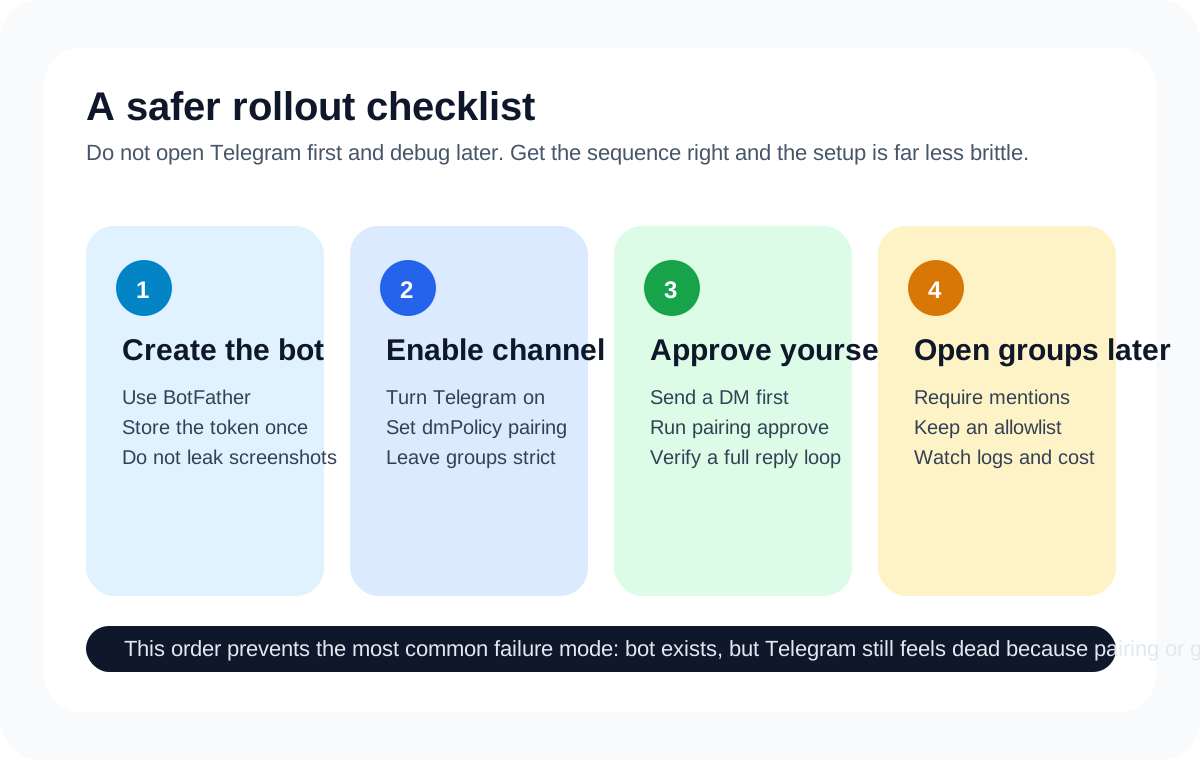
Step 3: Connect the Telegram channel to OpenClaw
In OpenClaw's Telegram configuration, four things matter first:
- enabled: true
- botToken
- dmPolicy
- group defaults
A stable starting point can be as simple as:
openclaw channels add --channel telegram --token <your-bot-token>If you prefer to think in config terms, the Telegram shape in the docs is roughly:
channels.telegram.enabled = true
channels.telegram.botToken = "<your-bot-token>"
channels.telegram.dmPolicy = "pairing"
channels.telegram.groups["*"].requireMention = true
I would not change direct messages to open on day one. Keeping pairing is safer because new users get a short code first, and the bot only becomes active for them after you approve the request.
That is not pointless friction. It stops a newly connected bot from being hit by unapproved traffic immediately.
Step 4: Run the first pairing approval
This is one of the easiest places to misread the system.
You connected the bot, but Telegram still feels dead. In many cases nothing is broken. The bot is simply waiting for pairing approval.
The correct sequence is:
- Open a direct chat with your bot in Telegram and send any message
- Go back to your machine and list pending requests
openclaw pairing list telegram
openclaw pairing approve telegram <CODE>
After approval, send another message in Telegram. In most cases the full path starts working immediately.
OpenClaw's docs are explicit here: Telegram direct messages default to pairing so the DM channel goes through owner approval before it becomes open.
Step 5: Group usage works too, but start with mention-only behavior
Many teams want to drop the bot into a group as soon as it works. That is fine, but do not run it wide open.
The safer pattern is:
- Keep the group policy on an allowlist or at least keep the scope tight
- Turn on requireMention
- Test inside your own group first
The benefit is very practical. OpenClaw only reacts when someone explicitly mentions the bot. Without that, a busy group can feed it a large amount of noisy context for no real reason.
Step 6: Move from "working" to "usable"
At this point the Telegram connection is in place. If you want to use it as a real long-term assistant, three extra habits matter.
1. Start with a fixed user allowlist
If this is mainly for yourself, do not open it up immediately. Let your own Telegram ID through first via pairing or an allowlist, confirm that the replies, commands, and cost profile are stable, then widen access later.
2. Set separate rules for group chats
Direct messages and group chats are not the same environment. DMs can be looser. Groups should be stricter. If OpenClaw is going to act like a team assistant, requireMention and a sender allowlist should usually be enabled first.
3. Learn to check status before reinstalling anything
If Telegram stops replying one day, your first move should not be a reinstall. Check status first:
openclaw channels status
openclaw gateway status
openclaw doctor
Those three commands are usually enough to separate token issues, gateway downtime, config drift, or pairing and allowlist blocks.
How I would roll this out
If you are using it personally:
- Get it working locally first
- Keep Telegram access limited to yourself
- Move it to an always-on machine only after the loop is stable
If you are deploying for a small team:
- Put OpenClaw on a VPS
- Create a dedicated Telegram bot instead of reusing an old one
- Keep pairing as the default
- Require mentions in groups
- Let one or two internal accounts test through the allowlist for a week
That is not being overly cautious. Once Telegram is open, it becomes a real production message channel. Treat it like an online system, not a throwaway demo.
Final takeaway
Do not think of Telegram as just another wrapper. For OpenClaw, it is often the first interface that gets used for real because it takes the agent out of a browser tab and turns it into something you can message instantly.
Get this path stable first. Expand to Discord, WhatsApp, or iOS nodes after that.